How to Connect a Telescope to a Computer
To connect a telescope to a computer, match the computer, mount, cable, and software before you start. Use a camera connection to send an image to your screen; mount control needs a compatible computerized mount or hand control.
On this page (8 sections)
- How to connect a telescope to a computer: choose the right connection
- How can you check whether your telescope supports computer control?
- How do you connect a telescope to a computer by USB?
- Which Celestron setup suits computer astronomy?
- How do you connect a telescope over WiFi?
- How do you connect a telescope camera to a computer?
- Why won't the computer recognize the telescope?
- How should you choose a telescope computer setup?
To connect a telescope to a computer, match the computer, mount, cable, and software before you start. A camera connection sends the telescope's view to your screen, while mount control needs compatible computerized hardware.
First decide what you want to do. To move the telescope or send it to a target, you need a compatible mount or hand control; to view or record an image, you need a compatible camera and capture software.
A phone adapter may be simpler if you only want to photograph what you see through an eyepiece. Our guide to telescope phone adapters explains what to check before choosing one.
How to connect a telescope to a computer: choose the right connection
Choose a connection based on the job you want your computer to do: USB or supported WiFi for control, and a compatible camera for images. A camera connection alone does not control the mount.
- Mount control: The computer sends commands to a computerized mount or compatible hand control. Check the exact model and software requirements first.
- Image capture: A camera connects to the telescope and computer, then capture software displays or records the view.
- Wireless app control: Some telescopes use WiFi with a phone or tablet app. Don't assume that a mobile app also supports a computer.
These options solve different problems, so identify your goal before shopping. If you want both mount control and imaging, check that each part of your setup supports its own connection.
How can you check whether your telescope supports computer control?
Look up the exact telescope, mount, and hand control models in their manuals. Check for supported computer control, USB or WiFi connections, compatible software, and any required cable.
Write down the model names and available ports before you shop. A USB socket by itself doesn't guarantee that a computer can control the mount, and similar-looking ports can serve different purposes.
A manual mount may not accept computer commands. You can still use a compatible camera, but the computer won't move the telescope unless the mount supports control.
For a stable base, assemble and align the telescope before adding computer connections. Our guide to setting up a telescope for the first time walks through the physical setup.
How do you connect a telescope to a computer by USB?
Use the cable specified for your mount or hand control, then open software that supports that hardware. Follow the manual's instructions for when to power the telescope on and how to start the connection.
The Celestron NexStar+ USB Hand Control is for compatible Celestron alt-azimuth NexStar telescopes. Its mini-USB connection supports software updates and optional telescope control with third-party software; the cable is sold separately.
Before connecting, confirm that you have the AZ hand control and a supported software setup. Select the correct telescope or mount in your program, then follow its connection prompts.
If the software can't find the mount, check that the cable fits the specified ports, the hand control is compatible, and the software is set to the right connection type. Change one thing at a time so you can see which step resolves the problem.
Which Celestron setup suits computer astronomy?
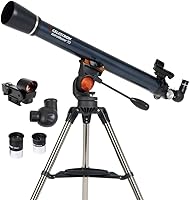
The Celestron 114LCM suits beginners who want computerized GoTo operation and sky-planning software. It includes a motorized alt-azimuth mount, NexStar+ hand control, and a free download of Starry Night software for planning sessions and simulating the sky.
The 114LCM's included software is for sky simulation and planning. Don't assume that it controls the mount from a computer; check the exact hand control, cable, and software compatibility if computer control is your goal.
Choose the Celestron NexStar+ USB Hand Control if you already have a compatible NexStar AZ telescope and need a USB connection for updates or optional control. Skip it if your mount isn't compatible or if you only need a camera to show images on your screen.
How do you connect a telescope over WiFi?
Use the telescope's supported app and built-in wireless connection, if it has one. Complete the model's alignment steps before choosing targets in the app.
The Celestron Astro Fi 130 uses integrated WiFi and the free SkyPortal app on iPhone, iPad, and Android devices. It creates its own wireless connection, so it can communicate with a device without internet access.
Celestron describes SkyAlign as centering 3 bright objects so the telescope can calculate its position. Follow the instructions for your model rather than borrowing an alignment process from another telescope.
Choose the Astro Fi 130 if you want to control a telescope through a compatible phone or tablet app. Skip it if you specifically need computer control: its stated control method is the mobile app, so confirm computer support before buying for that purpose.
How do you connect a telescope camera to a computer?
Connect a compatible camera to the telescope and computer, open capture software, and focus while watching the screen. This sends an image to your computer; it doesn't necessarily move the mount.
The SVBONY SV105 is a 1.25 in USB camera for lunar, planetary, and terrestrial imaging. It works with SharpCap Capture on Windows, AstroDMx Capture on Linux, and USB Camera on Android; it's also compatible with Apple laptops running macOS, but not Apple phones or tablets running iOS.
If your telescope accepts a 1.25 in barrel, put the camera where the eyepiece normally goes. Connect it to the computer, open compatible capture software, and turn the telescope's focus wheel in small steps until the image sharpens.
The SV105 does not autofocus. Start with a bright target such as the Moon, which makes it easier to find focus before trying dimmer targets.
Choose the SV105 if you want a direct USB camera for lunar or planetary capture and your computer supports its software. Skip it if you need a camera for an iPhone or iPad, or if you expect it to focus automatically.
For a phone-based image through an eyepiece, compare this with telescope phone adapters. Camera imaging and eyepiece viewing use different setups, so eyepiece magnification isn't a direct measure of the camera's view.
Why won't the computer recognize the telescope?
Check power, cable fit, connection settings, and software compatibility first. Then follow the setup instructions for the exact telescope and hand control.
Work through these checks one at a time:
- Confirm the mount and hand control are powered as instructed.
- Reseat both ends of the cable and confirm it matches the required ports.
- Select the correct telescope, mount, and connection type in the software.
- Close and reopen the software after connecting.
- Check the manual for required drivers, firmware updates, or model-specific setup steps.
A camera problem may be separate from mount control. If capture software shows no image, check the camera connection, capture program, and operating system support.
How should you choose a telescope computer setup?
Pick the connection that matches your goal and existing equipment. For computer control, start with the mount and hand control; for a live image, start with the camera and capture software.
If you already own a compatible Celestron NexStar AZ telescope, the NexStar+ USB Hand Control offers a route for software updates and optional third-party control. Choose the Astro Fi 130 if app control from a compatible phone or tablet fits your needs, or the SV105 if you want to send a camera view to a computer.
Before you buy, confirm compatibility among the telescope, mount, hand control, cable, computer, and software. For more help with how to connect a telescope to a computer, start by setting up your telescope, then choose a connection that your equipment supports.
Frequently asked questions
Can I connect any telescope to a computer?
No. Computer control requires a compatible computerized mount or hand control, plus the cable or wireless connection it supports.
A manual telescope may still accept a compatible camera, which sends its view to the computer, but the computer won't be able to move the mount.
Check the exact telescope and mount manuals before buying accessories.
Do I need a special cable to connect a telescope to a computer?
Often, yes. The cable must match the port on the mount or hand control and the connection supported by the software.
The Celestron NexStar+ USB Hand Control connects to a PC by mini-USB for updates or optional third-party control, and the cable is not included.
Check your exact model before choosing a cable.
Does telescope WiFi need an internet connection?
Not always. The Celestron Astro Fi 130 makes its own wireless connection for control through the SkyPortal app, so it can communicate with a phone or tablet without WiFi or cellular service.
That model's stated control method uses the app on a mobile device.
Computer control depends on the telescope, software, and connection they support.
Can I use a telescope camera with a computer?
Yes, when the camera, telescope, computer, and capture software are compatible. The SVBONY SV105 connects by USB and sends a live view to a laptop or PC; supported capture programs vary by operating system.
It does not autofocus.
Adjust the telescope's focus wheel while watching the screen.